How to secure your child's phone: a complete best-practices checklist
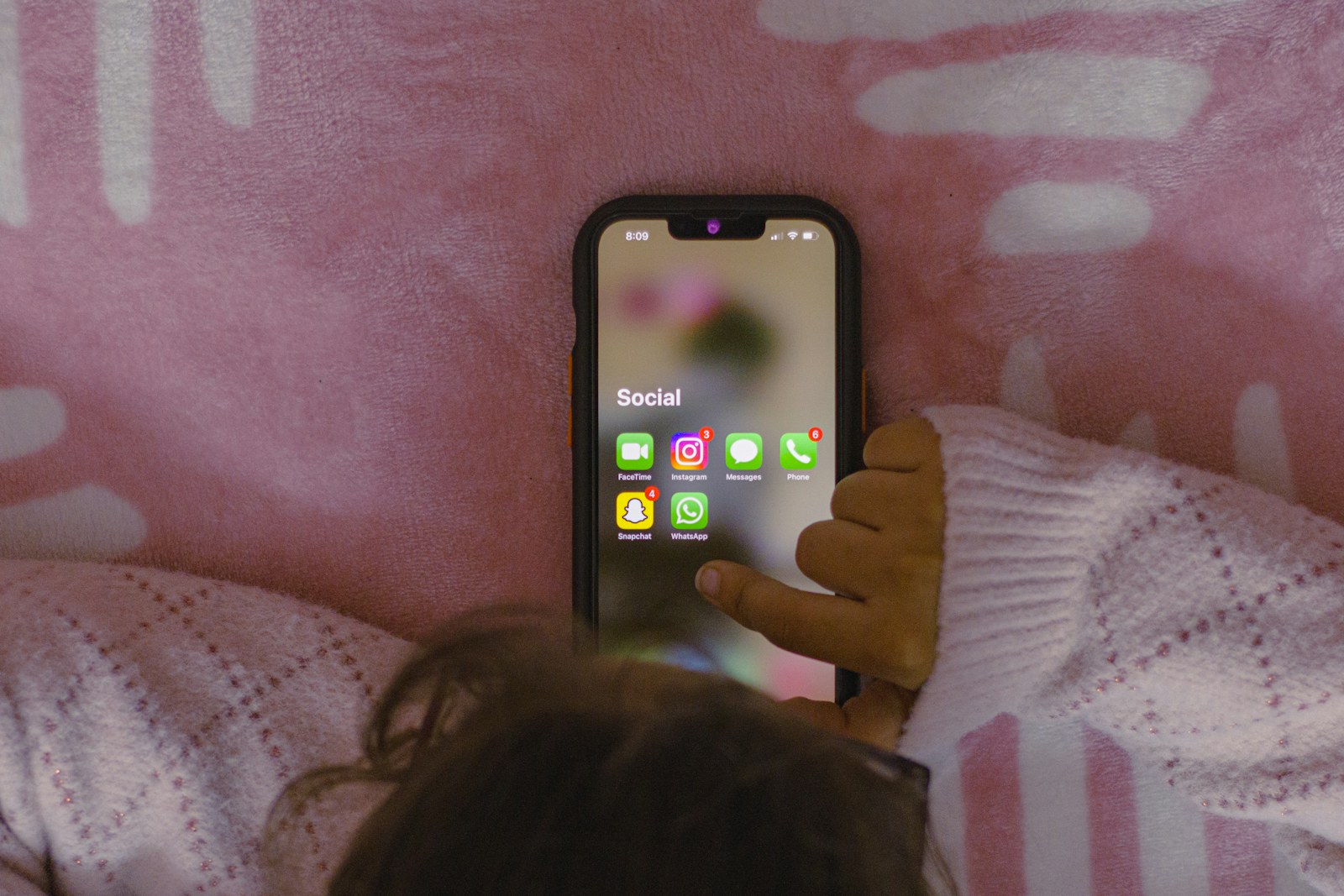 Photo by Sanket Mishra on Unsplash
Most advice on "keeping your kid's phone safe" is really just "install app X." That's one layer, not the whole job. A phone is secure the way a house is secure: several separate layers, each covering something the others don't, and each easy to skip if you only ever do the one everyone talks about.
It's also worth being honest about why rules alone tend not to hold: Pew Research Center found in October 2025 that 86% of parents of kids 12 and under have rules around screen use, but only 19% say they stick to those rules all the time. (Pew Research Center, "How Parents Manage Screen Time for Kids," October 8, 2025) That gap — a rule existing versus a rule being enforced every single day — is exactly what the tooling in this checklist is for. This is the complete list, in the order it actually matters, not alphabetical.
1. Lock the device itself first
Before any app or setting matters, the phone needs a lock screen PIN, pattern, or biometric — not because your kid will be attacked by a stranger through it, but because a device that unlocks with a swipe is a device where every other control downstream (parental control app, content filter, screen time limit) can be uninstalled or bypassed by anyone who picks it up. This is step zero, not step one.
2. Use one parental-control app as your foundation, not five overlapping ones
A parental-control app is what actually enforces the rest of this list continuously, in the background, without you doing it manually every day. It typically covers three separate jobs that get confused as one:
- Screen time limits — a daily cap, visible to the child before it hits, not just a report afterward.
- App blocking — specific apps switched off entirely, enforced in real time.
- Content filtering — sites blocked by category (adult content, gambling, violence), ideally filtered on the device itself rather than routed through a third-party server that now has a copy of your kid's browsing.
We wrote a longer breakdown of what to look for in a parental control app and how the major options compare if you haven't picked one yet — most families end up needing at least two of these three (screen time, app blocking, content filtering) working together, not just one.
3. Set a bedtime schedule, separately from the daily limit
A daily screen time cap and a bedtime lock solve different problems: a cap limits total use, a bedtime schedule stops use during specific hours regardless of how much of the daily allowance is left. A kid who's used none of their daily limit can still be on the phone at 1am without a bedtime rule in place. What a bedtime schedule actually controls, concretely is worth a five-minute read before you set one, since the actual mechanics (grace periods, override requests) aren't always what people assume.
4. Check app permissions before the first "Allow" tap, not after
Every app install triggers a string of permission prompts — camera, microphone, contacts, location — and kids tap through them the way they'd click past a loading screen. Once granted, most of these stay active continuously in the background until someone manually revokes them in Settings; there's no second checkpoint. The permissions worth actually stopping for: location (does this app need to know where the device is?), camera/microphone (does its function require recording?), and contacts (this one hands over your kid's entire contact list, including numbers and emails for people who never consented to anything). A full walkthrough of what to check covers this in more depth, including a regulatory change that raised the stakes here in 2026.
5. Restrict what can be installed at all
Both major app stores support requiring a PIN or parent approval before any new app installs, independent of whatever parental-control app you're running — this is a platform-level setting, not a third-party feature. It's the difference between reacting to an app after your kid already has it, and stopping the install before it happens.
6. Keep the OS and apps updated
Security patches close real, actively-exploited vulnerabilities — not hypothetical ones. An out-of-date OS is the one gap that isn't about parenting or settings at all; it's just maintenance, the same as it would be on a work laptop. Turn on automatic updates for the OS and for the parental-control app itself, so this isn't a manual task competing with everything else on this list.
7. Recognize that fake apps are a real, specific risk on mobile
Copycat apps with the same icon and a near-identical name have gotten millions of downloads before app stores caught and removed them — not a rare edge case. How these clones actually get past review, and what to check before installing anything matters most for the apps your kid asks for by name, which is exactly when scrutiny tends to drop.
8. Talk about it — the settings aren't a replacement for the conversation
Every control above assumes the kid doesn't know it's there or would remove it if they could. In practice, the most durable setups are the ones a kid understands the reasoning for, not just the ones they can't circumvent. A parental-control app that's explained (not hidden) tends to survive longer than one discovered accidentally and treated as an obstacle to defeat.
The checklist, short version
- Lock screen PIN/biometric — before anything else
- Parental-control app for screen time + app blocking + content filtering
- Bedtime schedule, set separately from the daily limit
- Review camera/mic/location/contacts permissions at install time
- Require approval for new app installs at the OS level
- Automatic OS + app updates on
- Extra scrutiny on apps installed by name request, not just browsing
- Explain the setup to your kid, don't just deploy it silently
Items 2 and 3 on this list are exactly the ones that fail quietly if nothing is enforcing them day to day — a bedtime schedule or a screen time cap that only exists as a rule you remember to check is the 19% gap from the Pew number above. Paxio runs that enforcement continuously in the background (screen time, app blocking, content filtering, and bedtime scheduling), so items 1, 4, 5, and 6 — the ones already built into Android itself — are the only pieces left for you to set up by hand.
Frequently asked questions
How do I secure my child's phone?
Start with a lock screen, add a parental control app for screen time, app blocking and content filtering, set a bedtime schedule, review app permissions, require approval for installs and keep the phone updated.
What is the first thing to set up on a child's new phone?
The device lock and the parental controls, before the first app is installed. It is easier to start with rules than to add them after habits form.
Do I need a parental control app if Android has built-in controls?
Built-in tools help, but a dedicated app adds a separate parent PIN, per-child profiles, real-time app blocking and category filtering that are harder to undo.
For the bigger picture on why a dedicated app beats a checklist alone, see why families choose Paxio.