App Blocking

Choose exactly which apps your kid can use

Block apps on your kid's phone with a single tap — every installed app, Allowed or Blocked, with an optional time limit of its own so a game can be capped at 30 minutes without touching the overall daily budget. Enforced in real time, nothing to uninstall.
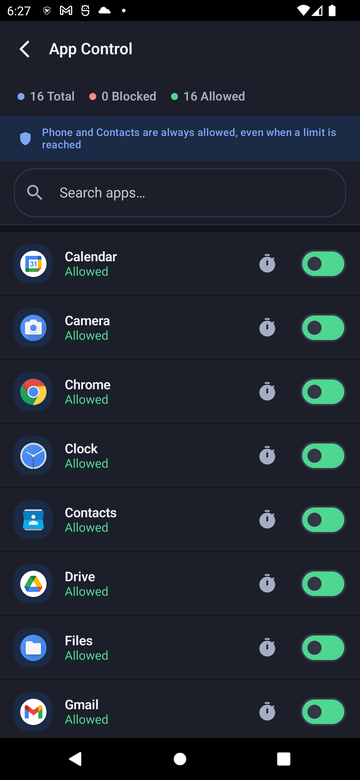
Every app, Allowed or Blocked

Paxio works as a parental control blocker for every app on your kid's Android phone — Allowed or Blocked with a single tap, with an optional time limit of its own, so a game can be capped at 30 minutes without touching the overall daily budget. Enforced in real time, nothing to uninstall.

Paxio App Control screen listing installed apps with Allowed/Blocked toggles
The details

How it actually works

Per-app control

Blocking isn't all-or-nothing — each app gets its own setting.

  • Toggle any installed app between Allowed and Blocked in one tap.
  • Give any app its own time limit, separate from the overall daily screen time cap.
  • New apps your child installs show up automatically, defaulting to whatever your household's suggested setting was at onboarding.

What's always allowed

A few things stay reachable no matter what's blocked.

  • Phone and Contacts are always allowed, even once every other limit is hit.
  • Paxio itself is exempt from its own blocking, so settings stay reachable.
  • Blocking is enforced by Android's Accessibility Service, not by uninstalling or disabling apps — nothing is removed from the device.

Enforcement, not detection

A blocked app is stopped before it opens, not flagged after the fact.

  • When a blocked app is opened, Paxio intercepts it immediately with a simple block screen.
  • Blocked-app attempts are logged and show up on the Reports screen, so repeated attempts are visible.
  • There's no way to force-quit or hide from the block — it runs as a system-level accessibility service.
Setup

Get it running in under a minute

1

Open App Control

From Control, tap App Blocker to see every installed app.

2

Toggle Allowed or Blocked

Tap any app to switch it, or set an optional per-app time limit.

3

Done — enforced instantly

The change applies the next time that app is opened, no restart needed.

FAQ

App Blocking — common questions

Can my child uninstall a blocked app to get around it?

Uninstall protection adds a confirmation step before Paxio itself can be removed, and app blocking is enforced by Android's Accessibility Service — not by hiding or disabling the app — so uninstalling the blocked app itself doesn't bypass Paxio.

Can I set a time limit on just one app, like a game?

Yes — any app can get its own optional time limit, independent of the overall daily screen time cap.

Will new apps be blocked by default?

New installs default to whatever your household's suggested app setup was during onboarding — you can adjust any app individually afterward.

Can my child see which apps are blocked?

Yes — opening a blocked app shows a clear block screen rather than silently failing, so there's no ambiguity about what happened.

Try Paxio free → See all controls