Each control, explained
Last updated: 27 August 2026
Tapping any row on the Control screen opens that control's own detail screen. Here's what's inside each one.
Screen Timer
- Today's Usage ring shows minutes used of the daily limit, with a status pill ("Within Limit," etc.).
- Daily limit slider — 30 minutes to 24 hours, in 15-minute steps, with quick presets (30m/1h/2h/4h/8h). Counts all apps except phone calls; resets at midnight.
- Bonus time from streaks (Paxio Pro) — staying under the daily limit for a run of days earns bonus minutes automatically: +15 at 3 days, +30 at 7 days, +45 at 15 days, +60 at 30 days running. No parent approval needed for the bonus itself.
- App breakdown appears once the child's device has synced its latest usage.
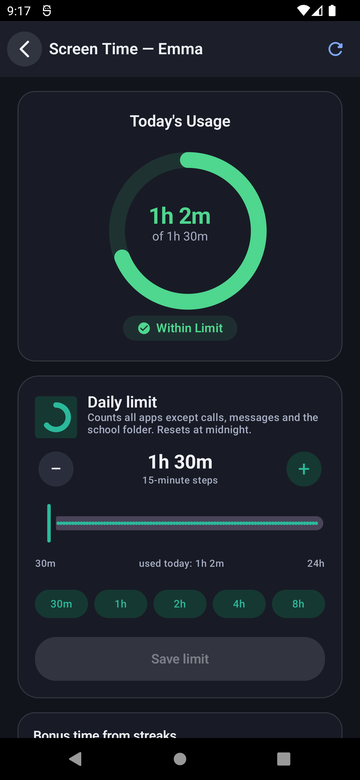
Usage ring & limit.
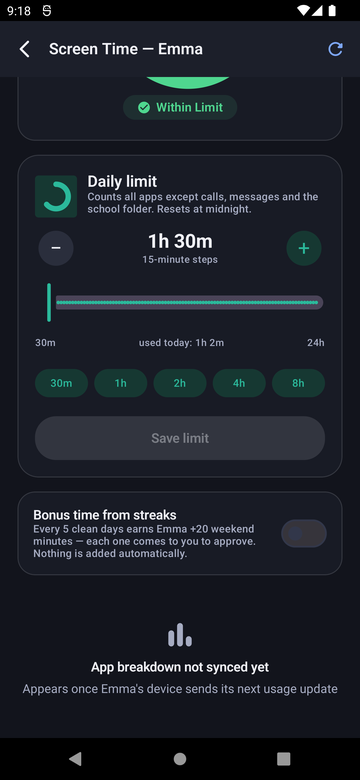
Streak bonus.
App Blocker
- Total/Blocked/Allowed counts sit at the top, with a note that Phone and Contacts are always allowed, even when a limit is reached.
- Search apps to find one quickly.
- Each app row shows Allowed/Blocked, a per-app time-limit shortcut, and a toggle.
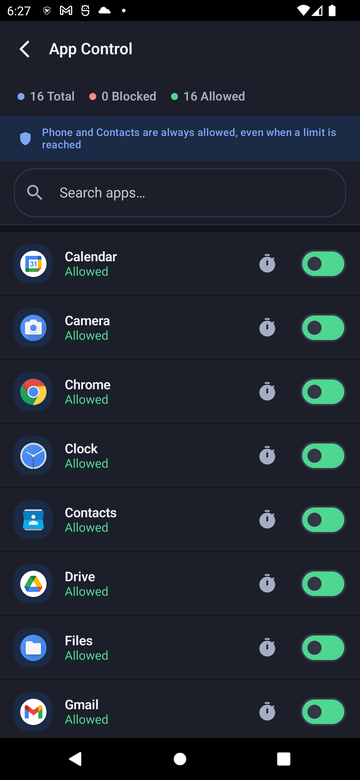
The App Blocker list.
Sleep Timer
- "Wind-down at night" — everything but calls sleeps until morning, starting right at the sleep time.
- Sleeps at / Wakes at set the schedule.
- Applies on lets you pick which days of the week it runs.
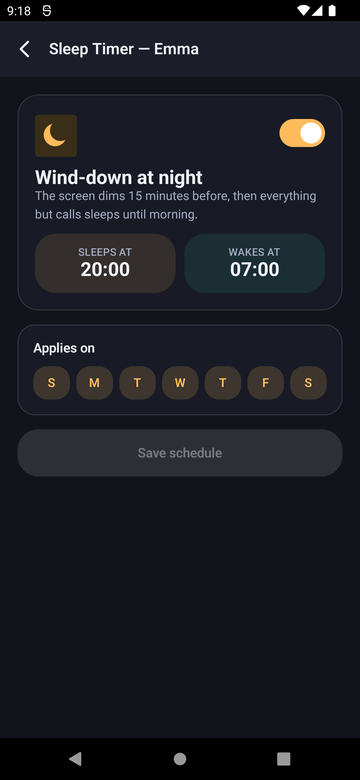
The Sleep Timer schedule.
Content Filter
- Age presets — Under 7, 8–10, Teen, Open — set all 15 categories at once, or use Block All / Allow All.
- Content Categories lists each one individually (Adult Content, Pornography, Violence & Gore, Gambling, Social Media, and more) with its own toggle.
- Turning it on for the first time shows a disclosure first: filtering runs via a local, on-device VPN that never sends browsing traffic anywhere — Paxio only inspects DNS requests to block matching domains, and only a blocked domain (not full browsing history) is saved for your weekly report.
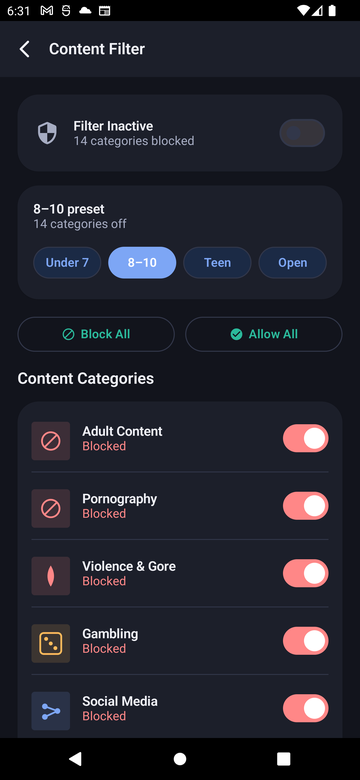
Categories & presets.
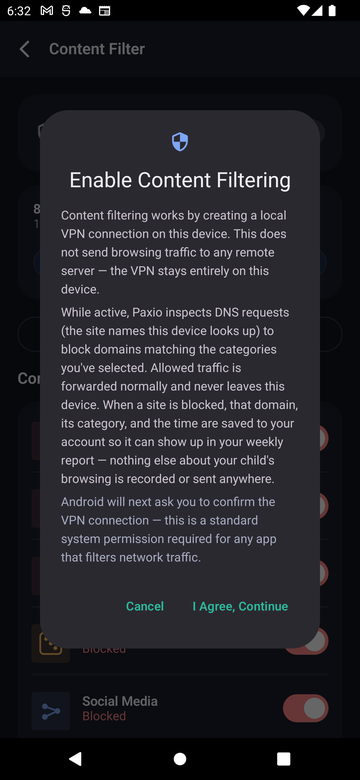
The first-time disclosure.
Internet Access
- A master toggle turns internet on or off outright — only works on the child's own dedicated device, not a shared one.
- "Pause for a while" gives quick presets: 30 min, 1 hour, or Dinner.
- Always allowed — Calls and Messages keep working even while internet is paused, since carrier calls/texts don't need a data connection.
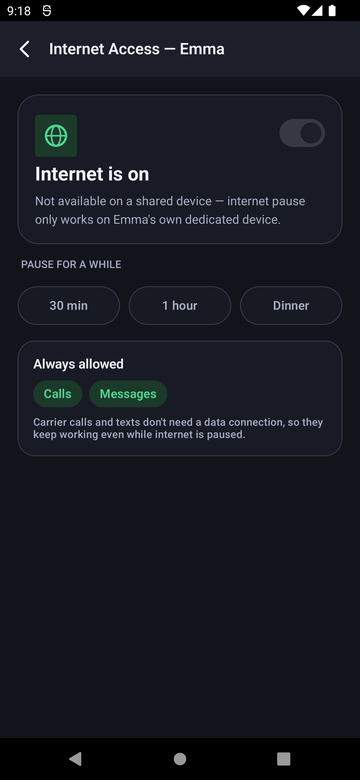
Internet Access controls.