Account Management
Last updated: 26 August 2026
Paxio uses either a Google account or an email/password to sign in — whichever you pick, your child profiles, PIN, and settings sync to that account, so switching devices later takes seconds. This covers creating an account, verifying your email, signing in again on a new device, and resetting a forgotten password.
Signing up
With Google (recommended):
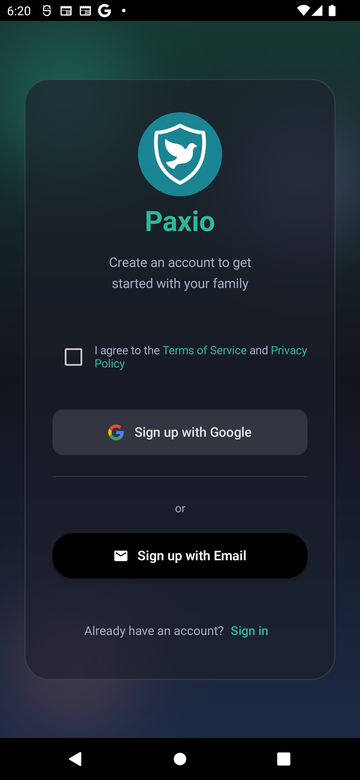
- Open Paxio. The welcome screen should read "Create an account to get started with your family." If it says "Sign in" instead, tap Sign up at the bottom to switch.
- Check the Terms of Service box. The Google and Email buttons stay disabled until you do.
- Tap "Sign up with Google" and choose your Google account from the picker that opens.
- You're in. Paxio creates your account and takes you straight into setup — no password to create.
With email instead:
- From the welcome screen, tap "Sign up with Email."
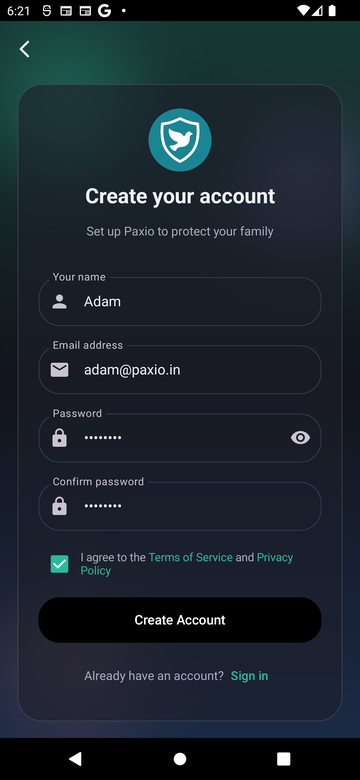
- Fill in your name, email, and password (entered twice, to confirm).
- Check the Terms of Service box, then tap Create Account.
Verifying your email
Signing up with email requires a quick verification step before you can continue:
- Check your inbox for an email from Paxio and open the verification link inside it.
- Return to the app and tap "I've verified — continue."
- Didn't get the email? Tap Resend email on the same screen.
Signing in on a new device
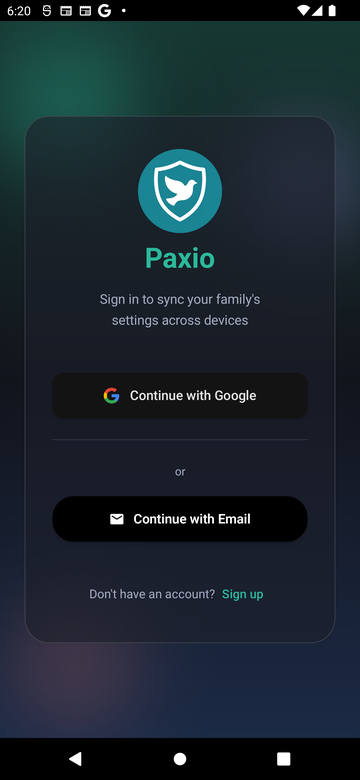
Already have an account? Signing in again — after reinstalling, or on a second device — is the same welcome screen, just in sign-in mode:
- Open Paxio. The welcome screen should read "Sign in to sync your family's settings across devices." If it says "Create an account" instead, tap Sign in at the bottom to switch.
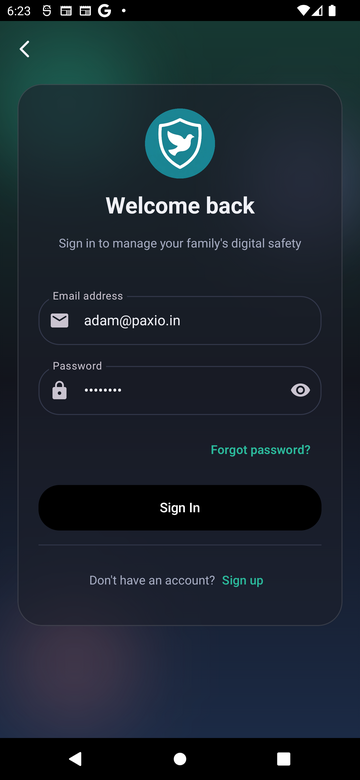
- Tap "Continue with Google" and pick the same Google account, or tap Continue with Email and enter the email and password you signed up with.
- If your email still isn't verified, you'll see the verification screen again — check your inbox as above.
Resetting a forgotten password
This only applies if you signed up with email and password. If you signed up with Google, there's no separate Paxio password to reset — use Google's own account recovery instead.
Request a reset link:
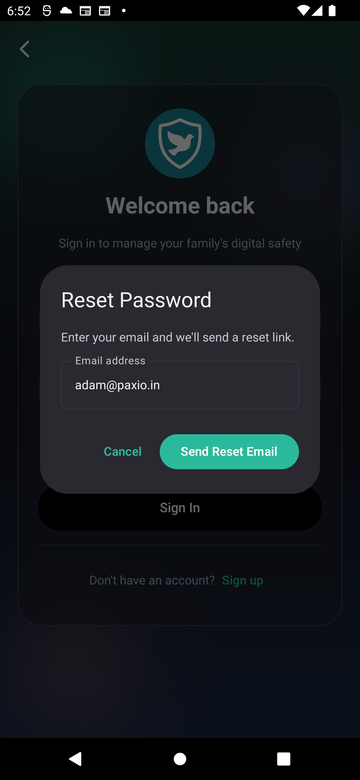
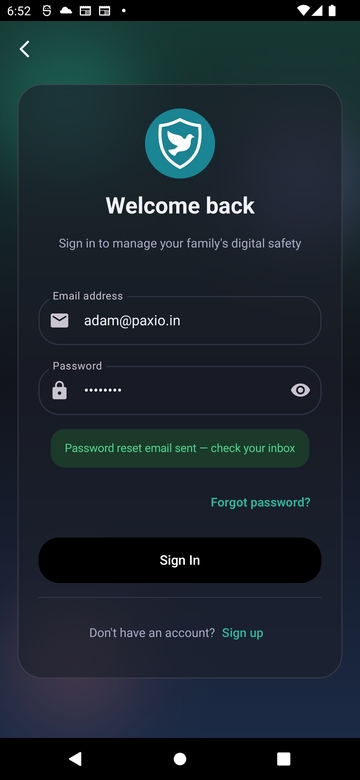
- On the sign-in screen, tap "Forgot password?" below the password field.
- Enter the email address you signed up with, then tap "Send Reset Email."
Finish resetting it:
- Open the email Paxio sends you and follow the link to choose a new password.
- Return to Paxio and sign in with your new password.