Child Device Onboarding Process
Last updated: 27 August 2026
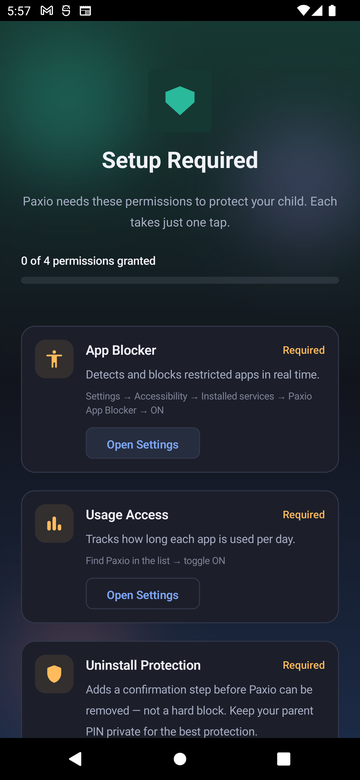
This screen appears on a device set to "This is my child's phone," or a shared device switched into child view — a "This is my phone" device never sees it, since permissions are only needed to run enforcement on a child-facing device. Paxio explains what each one does before asking for it, and each takes just one tap.
What each permission is for
| Permission | What it's for |
|---|---|
| App Blocker (Accessibility Service) | Detects and blocks restricted apps in real time. |
| Usage Access | Tracks how long each app is used per day. |
| Uninstall Protection (Device Admin) | Adds a confirmation step before Paxio can be removed — not a hard block. Keep your parent PIN private for the best protection. |
| Content Filtering (local VPN) | Lets Paxio filter unsafe websites using a local, on-device VPN connection. No browsing data leaves the device. |
| Notifications | Lets Paxio alert you about screen time limits and app blocks. |
All five are required — the "Continue" button stays disabled until every one is granted.
Granting them
- A progress line at the top shows "X of Y permissions granted," with a fill bar that updates live.
- Tap "Open Settings" on any ungranted card — each one shows the short path to follow (e.g. "Settings → Accessibility → Installed services → Paxio App Blocker → ON").
- Return to Paxio after granting — the card turns green with a checkmark automatically, no need to tap anything else.
- Tap "Continue" once every card is green.
What the App Blocker actually sees
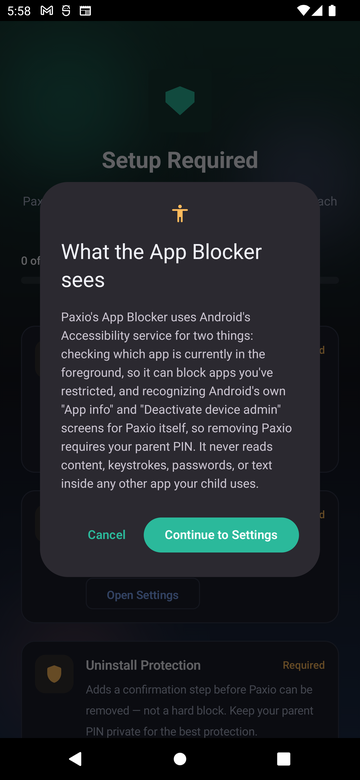
Tapping "Open Settings" on the App Blocker card first shows a disclosure dialog, before handing off to Android's own Accessibility settings:
"Paxio's App Blocker uses Android's Accessibility service for two things: checking which app is currently in the foreground, so it can block apps you've restricted, and recognizing Android's own 'App info' and 'Deactivate device admin' screens for Paxio itself, so removing Paxio requires your parent PIN. It never reads content, keystrokes, passwords, or text inside any other app your child uses."
Enabling App Blocker
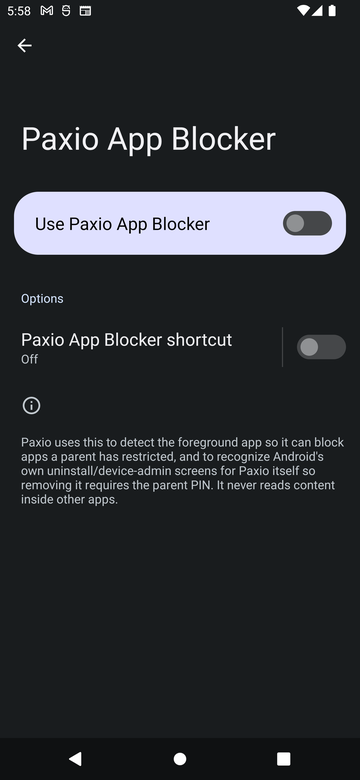
- Tapping "Continue to Settings" opens Android's Accessibility settings, with Paxio App Blocker listed and off.
- Under "Downloaded apps," choose "Paxio App Blocker" and toggle "Use Paxio App Blocker" on.
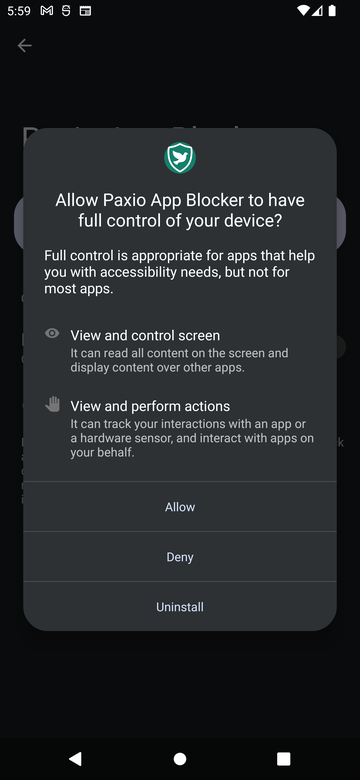
- Tap "Allow" on the system dialog asking to give it full control — needed to detect the foreground app and block it.
Enabling Usage Access
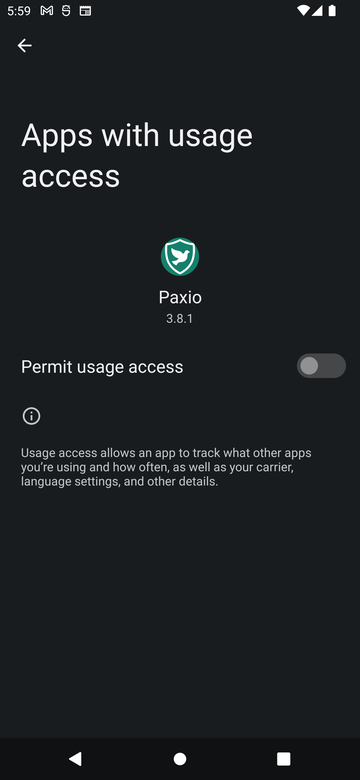
- Tapping "Open Settings" opens Android's "Apps with usage access" list, already scrolled to Paxio.
- Toggle "Permit usage access" on, then go back to Paxio.
Enabling Uninstall Protection
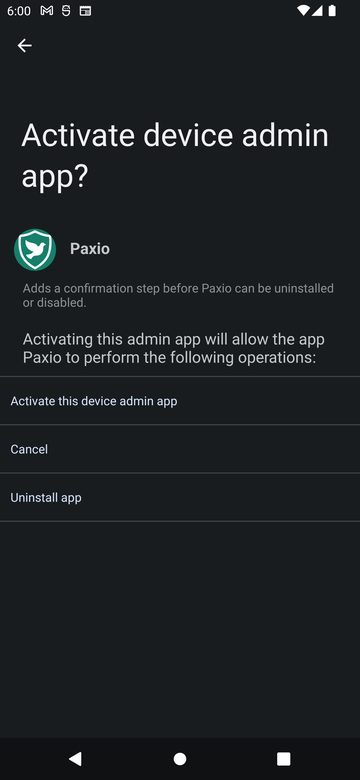
- Tapping "Open Settings" opens Android's "Activate device admin app?" screen for Paxio.
- Tap "Activate this device admin app."
- On newer Android versions, solve the CAPTCHA Android shows before it finishes activating — this is a device-level anti-malware check, not something Paxio adds.
Enabling Content Filtering
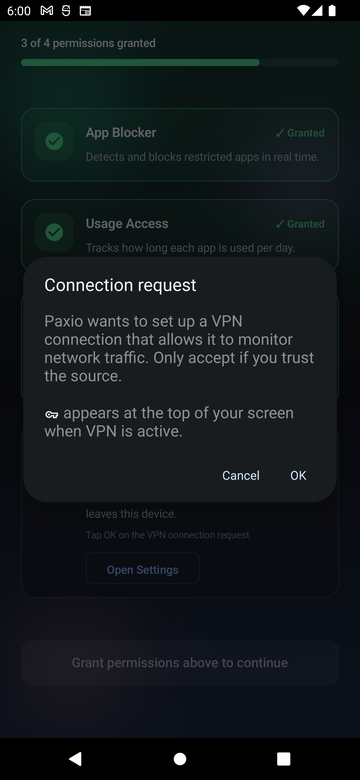
- Tapping "Open Settings" shows Android's own "Connection request" — Paxio setting up a local VPN to filter unsafe sites.
- Tap "OK." A key icon appears at the top of the screen whenever the VPN is active.
Images will vary based on your Android version.